Tools, Intermediate, 12 min read, PhotoGenius Team
PhotoGenius Workflow Optimization Guide
Optimize your image and video generation workflow using FLUX 1.1 Pro, Nano Banana, and PhotoGenius's video models.
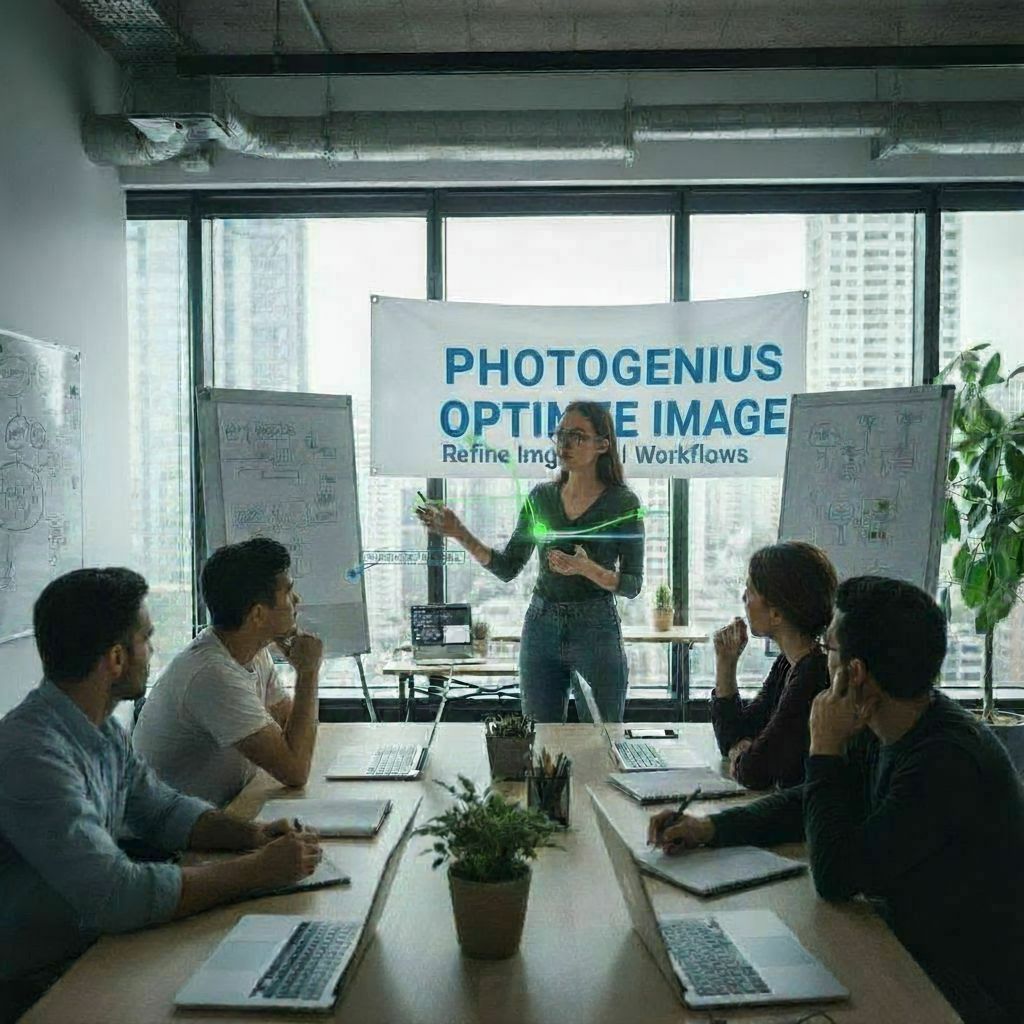
PhotoGenius Workflow Optimization
Maximize your productivity with PhotoGenius by building efficient workflows around FLUX 1.1 Pro, Nano Banana, and our video generation models.
Core PhotoGenius Workflows
The Image Generation Pipeline
PhotoGenius provides three main tools for image work:
- FLUX 1.1 Pro: Text-to-image generation
- Google Nano Banana: Image editing and variations
- Ad Generator: Product photography layouts
Optimal Quality Settings
Understanding quality settings saves time and credits:
FLUX 1.1 Pro Quality Tiers:
- 70-80: Draft quality (5-10 seconds)
- 85-90: Production quality (10-15 seconds)
- 95-100: Maximum quality (15-25 seconds)
Efficient Testing Strategy:
1. Test at quality 80 with batch of 4
2. Refine prompt based on results
3. Generate final at quality 95+
Essential PhotoGenius Workflows
Workflow 1: Basic Image Creation
Steps:
- Open Image Playground
- Write FLUX prompt (under 75 words)
- Set quality to 85
- Generate 2-4 variations
- Select best result
- Download or refine with Nano Banana
Time: 2-3 minutes total
Workflow 2: Image Refinement Pipeline
FLUX → Nano Banana Workflow:
1. Generate base with FLUX (quality 85)
2. Upload to Nano Banana
3. Edit specific areas with masking
4. Save using version history
Use Cases:
- Fixing hands or faces
- Changing colors
- Modifying backgrounds
- Adding/removing elements
Workflow 3: Product Photography
For E-commerce:
1. FLUX: Generate product on white background
2. Nano Banana: Create color variations
3. Ad Generator: Apply commercial layouts
4. Export all versions
Batch Processing:
- Generate 4 FLUX variations
- Create 3 color variants per image
- Total: 12 product images in 10 minutes
Workflow 4: Character Development
Consistent Character Creation:
1. FLUX: Generate character reference (quality 95)
2. Document successful prompt
3. Nano Banana: Use as input for variations
4. Save all versions in history
Character Variations:
- Different expressions (Nano Banana masking)
- Outfit changes (Nano Banana masking)
- Environment changes (Nano Banana background)
Video Generation Workflows
Quick Video Testing
Model Selection by Speed:
- Google Veo 3: Fastest, for quick previews
- Google Veo 2: Balanced speed/quality
- Kling 1.6 Pro: Artistic style
- WAN 2.1: Maximum quality (slowest)
Testing Workflow:
1. Test concept with Veo 3
2. Refine prompt based on result
3. Generate final with appropriate model
Video Style Pipeline
Matching Video to Brand:
1. Generate key frame with FLUX
2. Use as starting image for video model
3. Generate 5-second clip
4. Iterate if needed
3D Generation Workflows
Text-to-3D Pipeline
Efficient 3D Creation:
1. Start with FLUX 2D reference (quality 85)
2. Use successful prompt for text-to-3D
3. Wait 3-6 minutes for processing
4. Download GLB for use
Image-to-3D Pipeline
Converting Existing Images:
1. Select/generate high-quality source image
2. Crop to isolate single object
3. Upload to Image-to-3D converter
4. Adjust settings (color, guidance)
5. Wait for 3D processing
3D Quality Optimization
Processing Times:
- Text-to-3D: 3-6 minutes
- Image-to-3D: 2-5 minutes
- Plan workflows around these times
Prompt Template Library
FLUX 1.1 Pro Templates
Portrait Template:
"Portrait photograph, [subject description],
[lighting type], [background],
professional quality, sharp focus"
Product Template:
"Product photography, [item description],
white background, studio lighting,
commercial quality, centered"
Landscape Template:
"Landscape photograph, [location type],
[time of day], [weather],
wide angle, high resolution"
3D Generation Templates
Text-to-3D Template:
"[Object type], [material/color], [key features],
clear background, [viewing angle], isolated object"
3D Object Examples:
"Modern chair, wooden frame, ergonomic design,
clear background, three-quarter view, isolated object"

"Sports car, red paint, sleek design,
white background, front angle, single vehicle"

"Coffee mug, ceramic white, simple handle,
isolated, centered view, complete object"
Nano Banana Edit Templates
Background Change:
Mask: Background area
Prompt: "[New background description]"
Color Change:
Mask: Object to recolor
Prompt: "[New color] [object name]"
Style Transfer:
Full image input
Prompt: "Same scene as [target style]"
Batch Generation Strategies
FLUX Batch Optimization
Testing Multiple Concepts:
Quality: 80
Batch: 4 images
Time: 40 seconds total
Purpose: Concept exploration
Production Batch:
Quality: 90
Batch: 2 images
Time: 30 seconds total
Purpose: Final variations
Nano Banana Variation Strategy
Creating Product Variants:
1. Input: Single FLUX generation
2. Generate 4 variations
3. Edit each for different colors
4. Total: 16 variants from 1 base
3D Batch Strategy
3D Asset Creation:
1. FLUX: Generate 2D references (quality 85)
2. Select best for 3D conversion
3. Text-to-3D: Use successful prompt
4. Image-to-3D: Convert refined 2D version
5. Compare results, choose best approach
3D Collection Workflow:
1. Define object set (chair, table, lamp)
2. Create consistent style prompt base
3. Generate each object separately
4. Use same viewing angle for all
5. Result: Cohesive 3D asset collection
Time-Saving Techniques
Technique 1: Quality Laddering
Draft → Review → Production → Final
 (70)     (80)      (90)      (95+)
Only increase quality after confirming concept works.
Technique 2: Prompt Recycling
Build a personal library:
✓ Successful prompts
✓ Client-approved styles
✓ Brand-specific templates
✓ Quick-fix modifiers
Technique 3: Version History Mining
PhotoGenius saves all edits:
- Review past successes
- Revert failed experiments
- Build on previous work
- Track what worked
Technique 4: 3D Generation Timing
Optimize 3D Workflows:
3D generation takes 3-6 minutes
Use this time for:
- Writing next prompts
- Organizing files
- Planning next steps
- Reviewing previous results
Parallel 3D Processing:
Start 3D generation → Work on 2D content →
Check 3D progress → Start next 3D → Continue cycle
Client Project Workflows
Portfolio Development
Efficient Portfolio Creation:
1. FLUX: Generate 20 images at quality 85
2. Select top 10
3. Nano Banana: Polish details
4. Regenerate top 5 at quality 95+
Time: 1 hour for 5 portfolio pieces
Social Media Content
Quick Social Pipeline:
1. FLUX: Generate at 85 quality
2. Nano Banana: Adjust for platform
3. Add text overlays externally
4. Export optimized sizes
Batch Social Creation:
- 5 Instagram posts: 15 minutes
- 3 Story variations: 10 minutes
- 1 Hero banner: 5 minutes
Commercial Projects
Client Presentation Workflow:
1. FLUX drafts at quality 80 (quick iteration)
2. Show 4-8 concepts to client
3. Refine approved concepts at quality 90
4. Final delivery at quality 95+
Advanced Optimization Tips
FLUX Prompt Optimization
Efficient Prompt Structure:
[Style, 1-2 words] + [Subject, 5-10 words] +
[Environment, 5-10 words] + [Technical, 5-10 words]
Total: Under 50 words for consistency
Nano Banana Efficiency
Quick Edit Rules:
- Smaller masks = faster processing
- Simple prompts = better results
- One change at a time = predictable outcomes
Credit Management
Credit-Efficient Testing:
Never test above quality 85
Use batch of 2 for refinements
Save quality 95+ for finals only
Use Nano Banana for minor fixes (cheaper than regenerating)
Troubleshooting Workflows
When FLUX Isn't Working
Diagnostic Process:
1. Simplify prompt to core elements
2. Test at quality 80
3. Identify problem element
4. Rebuild prompt gradually
When Nano Banana Over-Edits
Recovery Process:
1. Use version history to revert
2. Reduce mask size
3. Simplify edit prompt
4. Try multiple small edits instead
When 3D Generation Fails
Diagnostic Process:
1. Check if single object in prompt
2. Ensure background specified
3. Verify clear viewing angle
4. Simplify complex prompts
5. Try image-to-3D instead
3D Recovery Strategies:
1. Generate 2D reference first
2. Perfect 2D version, then convert
3. Use simpler object descriptions
4. Check processing completion (wait 6+ minutes)
Workflow Automation Ideas
Daily Tasks
Morning Routine:
1. Check PhotoGenius updates
2. Review yesterday's best generations
3. Update prompt library
4. Plan day's projects
End-of-Day Process:
1. Export final images
2. Document successful prompts
3. Clear test generations
4. Backup important work
Weekly Optimization
Weekly Review:
1. Analyze credit usage
2. Identify most effective prompts
3. Update template library
4. Plan next week's projects
Platform-Specific Workflows
Image Playground Optimization
Keyboard Shortcuts:
- Quick generate: Enter
- Copy prompt: Cmd/Ctrl + C
- New generation: Cmd/Ctrl + N
Interface Tips:
- Keep prompt library in separate doc
- Use browser tabs for references
- Save successful seeds when available
Video Playground Strategy
Model Selection Guide:
Motion Type     → Best Model
Simple/Loop     → Google Veo 3
Realistic       → Google Veo 2
Artistic        → Kling 1.6 Pro
Cinematic       → Minimax O1
High Quality    → WAN 2.1
Ad Generator Workflow
Product Photography Pipeline:
1. Upload product image (FLUX or photo)
2. Select layout template
3. Adjust text and branding
4. Export in multiple formats
3D Generation Studio Workflow
Text-to-3D Process:
1. Write single-object prompt
2. Include "clear background" and viewing angle
3. Set guidance strength (7.5 default)
4. Enable color generation
5. Wait 3-6 minutes for completion
6. Download GLB file
Interface Tips:
- Plan 5-10 minute sessions per model
- Use advanced settings for fine control
- Share publicly for gallery inclusion
- Download both 2D reference and 3D model
Image-to-3D Converter Workflow
Conversion Process:
1. Prepare high-quality source image
2. Crop to isolate single object
3. Upload (max 10MB, PNG preferred)
4. Adjust color and guidance settings
5. Wait for 3D processing
6. Download GLB result
Preparation Tips:
- Use 1024px+ resolution images
- Ensure clear object boundaries
- Remove background clutter
- Good lighting and contrast essential
Public Gallery Integration
Sharing Strategy:
1. Generate quality 3D models
2. Enable "Make Public" during generation
3. Use descriptive prompts (visible in gallery)
4. Share direct links for collaboration
5. Browse gallery for inspiration
Measuring Workflow Success
Key Metrics
Efficiency Metrics:
- Images per hour
- 3D models per session
- Credits per final image
- Time to client approval
- Revision cycles needed
Quality Metrics:
- First-attempt success rate
- 3D model completion rate
- Client satisfaction
- Portfolio acceptance rate
Optimization Targets
Beginner Goals:
- 5 final images per hour
- 1-2 3D models per hour
- 50% first-attempt success
- Quality 85 average
Advanced Goals:
- 10+ final images per hour
- 3-4 3D models per hour
- 75% first-attempt success
- Strategic quality usage
Common Workflow Mistakes
Mistake 1: Over-Generating
Problem: Generating 20+ times hoping for perfect result Solution: After 5 attempts, revise approach
Mistake 2: Quality Overkill
Problem: Always using quality 95+ Solution: Reserve high quality for finals only
Mistake 3: Ignoring Nano Banana
Problem: Regenerating instead of editing Solution: Use Nano Banana for minor fixes
Mistake 4: No Documentation
Problem: Losing successful prompts Solution: Maintain prompt library
Mistake 5: Inefficient 3D Workflows
Problem: Not planning around 3D processing times Solution:
- Start 3D generation first
- Work on 2D content while waiting
- Batch 3D models for efficiency
Mistake 6: Wrong 3D Method Selection
Problem: Using text-to-3D when image-to-3D would be better Solution:
- Text-to-3D: Original concepts, simple objects
- Image-to-3D: Complex shapes, existing references
Building Your Personal Workflow
Week 1: Foundation
1. Test all PhotoGenius features (2D, video, 3D)
2. Identify your common use cases
3. Create basic prompt templates
4. Practice quality settings
5. Understand 3D processing times
Week 2: Optimization
1. Time your current process
2. Identify bottlenecks
3. Implement batch strategies
4. Build prompt library
Week 3: Refinement
1. Analyze success patterns
2. Optimize quality usage
3. Master Nano Banana editing
4. Develop 3D workflow timing
5. Document best practices
Week 4: Mastery
1. Achieve target metrics
2. Develop signature style
3. Create reusable assets
4. Scale production
Remember: The best workflow is one you'll actually use. Start simple, measure results, and optimize based on your specific needs with PhotoGenius's 2D, video, and 3D capabilities.
Continue reading
- 14 min
Character Consistency with FLUX 1.1 Pro and Nano Banana
Professional techniques for maintaining character consistency using FLUX 1.1 Pro generation and Nano Banana editing.
- 18 min
Complete FLUX & Nano Banana Prompting Guide
Master both beginner and advanced prompting techniques for FLUX 1.1 Pro generation and Nano Banana editing.
- 12 min
Transform Product Photos into Stunning Ads with AI
Turn a simple product photo into professional marketing materials in seconds. Learn how to create ads that actually convert.