Prompting, Intermediate, 18 min read, PhotoGenius Team
Complete FLUX & Nano Banana Prompting Guide
Master both beginner and advanced prompting techniques for FLUX 1.1 Pro generation and Nano Banana editing.
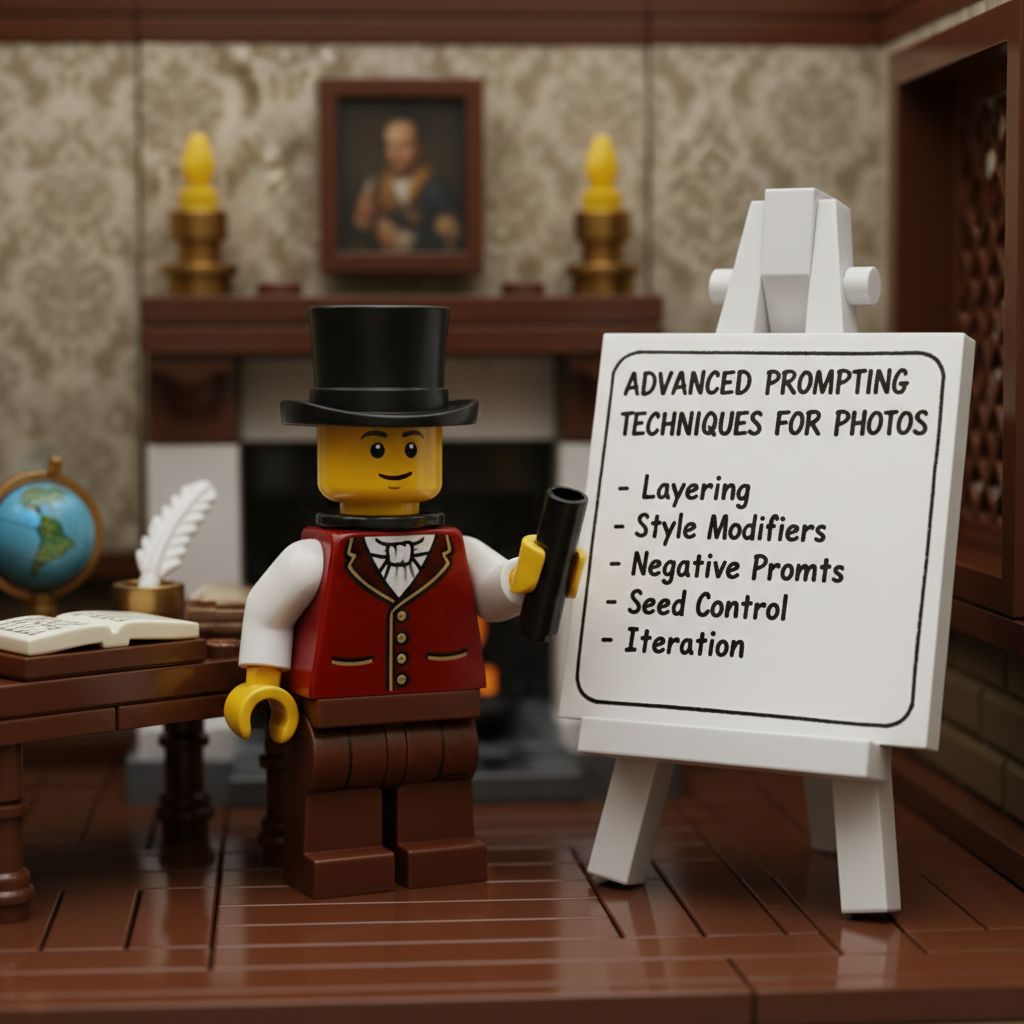
From basic techniques to professional patterns—everything you need to master prompting in PhotoGenius.
Part 1: Essential FLUX Basics
Understanding How FLUX Reads Your Prompts
FLUX processes prompts linearly, giving more weight to earlier elements. Think of it like giving directions—you mention the destination first, then the route details.
The Golden Structure:
[Style/Medium] → [Subject] → [Environment] → [Lighting] → [Technical Details]
Why this order works:
- FLUX establishes the overall aesthetic first
- Subject details are interpreted within that style
- Environmental and lighting details enhance the established scene
- Technical details fine-tune the final output
Real Examples That Work
Portrait Photography:
"Portrait photograph, young woman with curly hair,
coffee shop background, window light, bokeh, 85mm lens"
Digital Art:
"Digital illustration, dragon perched on castle tower,
stormy sky background, dramatic lighting, detailed scales"
Product Photography:
"Product photography, sneakers on white background,
studio lighting, clean shadows, commercial quality"
Essential Style Keywords
FLUX responds exceptionally well to specific terminology:
Photography Styles:
- "DSLR photo" - Sharp, professional quality
- "Film photography" - Adds grain and vintage colors
- "Portrait photograph" - Optimizes for faces
- "Commercial photography" - Clean, product-focused
Lens Effects (FLUX loves these):
- "35mm lens" - Wide angle with slight distortion
- "85mm portrait lens" - Beautiful background blur
- "Macro lens" - Extreme close-ups
- "50mm lens" - Natural perspective
Lighting Terms:
- "Golden hour" - Warm, soft directional light
- "Studio lighting" - Even, professional illumination
- "Natural light" - Soft, realistic lighting
- "Dramatic lighting" - High contrast, moody
Part 2: Nano Banana Editing Essentials
The Replacement Philosophy
Nano Banana doesn't "remove" things—it replaces them. Always describe what you want to see, not what you want gone.
Wrong: "Remove the person" Right: "Empty park bench"
Wrong: "Delete the background" Right: "Plain white background"
Masking Best Practices
- Tight masks win: Only select what needs changing
- Match the style: Keep edits consistent with the original
- One change at a time: Multiple edits = multiple passes
Common Edit Patterns
Background Replacement:
"Modern office background"
"Outdoor garden setting"
"Plain gradient background"
Object Changes:
"Red leather jacket" (to change clothing)
"Wooden chair" (to replace furniture)
"Golden retriever" (to change pet type)
Style Adjustments:
"Brighter lighting"
"Warmer color tones"
"More professional appearance"
Part 3: Advanced FLUX Techniques
The 75-Word Rule
FLUX has a sweet spot—it processes about 75 words effectively. After that, it starts ignoring details. Here's how to maximize those words:
Word Priority Zones:
- Words 1-20: Style and main subject (highest impact)
- Words 21-50: Environment and composition
- Words 51-75: Technical details and quality
- Words 76+: Often ignored—don't waste them
Advanced Example:
"Cyberpunk photograph, hacker with neon face implants,
dark server room, holographic displays floating,
blue and purple lighting, dramatic shadows,
professional photography, sharp focus, 85mm lens"
Count: 22 words—perfect!
FLUX Genre Specialization
Photorealistic Portraits with FLUX
FLUX Portrait Formula (optimized for 50 words):
"Portrait photograph, [subject description], [expression],
[lighting type], [camera/lens specs], [background],
professional quality, sharp focus"
FLUX Example:
"Portrait photograph, 35-year-old Asian woman, confident smile,
Rembrandt lighting, 85mm lens, bokeh background,
professional headshot, sharp focus on eyes"
FLUX Portrait Tips:
- FLUX excels at photorealistic portraits
- Specify "photograph" or "photo" early for best results
- Include lens type (85mm, 35mm) for consistent style
- FLUX understands lighting terms (Rembrandt, butterfly, split)
Cinematic Scenes with FLUX
FLUX Cinematic Formula:
"Movie still, [scene], [genre style],
[color grading], [lighting], cinematic composition,
film photography, [aspect ratio]"
FLUX Example:
"Movie still, astronaut in space station corridor,
sci-fi thriller style, teal and orange grading,
dramatic lighting, cinematic composition,
film photography, widescreen"
FLUX Cinematic Notes:
- "Movie still" or "film still" triggers cinematic mode
- FLUX responds well to color grading terms
- Keep director references simple (FLUX may not recognize all)
- Use PhotoGenius aspect ratios: 16:9 for cinematic width
Concept Art with FLUX
FLUX Concept Art Pattern:
"Concept art, [subject], [style],
[view/angle], clean presentation,
detailed design, professional quality"
FLUX Example:
"Concept art, futuristic hover vehicle,
semi-realistic style, three-quarter view,
clean white background, detailed mechanical parts,
professional concept design"
Note: FLUX works best with single views. For multiple angles, generate separate images and combine using Nano Banana.
FLUX Style Techniques
Style Combination in FLUX
FLUX handles style mixing through sequential keywords:
FLUX Style Pattern:
"[Primary style], [secondary style elements],
[subject], [specific style features]"
FLUX Example:
"Oil painting with digital art finish,
mountain landscape, thick impasto texture,
clean edges, atmospheric sky"
Note: FLUX processes styles better when stated clearly rather than as percentages.
Period and Cultural Styles with FLUX
FLUX Period Style:
"Art Deco style poster, 1920s fashion,
geometric patterns, gold and black colors,
vintage aesthetic"
FLUX Cultural Style:
"Japanese ink painting style, minimalist landscape,
traditional brush strokes, negative space,
monochrome palette"
FLUX recognizes major art movements and cultural styles when clearly stated.
FLUX Composition Control
Composition Terms FLUX Understands
Rule of Thirds:
"Rule of thirds composition, subject off-center,
balanced negative space"
Centered:
"Centered composition, symmetrical framing,
subject in middle"
Leading Lines:
"Leading lines toward subject, diagonal composition,
dynamic angle"
FLUX responds to simple composition terms better than complex geometric descriptions.
Depth Control in FLUX
FLUX Depth Pattern:
"[Subject] in sharp focus, blurred foreground elements,
bokeh background, shallow depth of field"
FLUX Example:
"Woman in sharp focus, blurred flowers in foreground,
bokeh city lights background, 85mm lens depth"
FLUX handles depth through photography terms (bokeh, depth of field) rather than layer descriptions.
Color Control in FLUX
FLUX Color Patterns
Simple Color Schemes:
"Blue and orange color scheme"
"Monochrome with red accents"
"Pastel color palette"
"Earth tones"
Mood Palettes for FLUX
FLUX Mood Examples:
Nostalgic: "Vintage color grading, faded colors, warm tones"
Futuristic: "Neon colors, cyberpunk palette, high contrast"
Natural: "Natural colors, earth tones, organic palette"
FLUX responds better to descriptive color terms than technical color theory.
FLUX Lighting Techniques
Studio Lighting in FLUX
FLUX Studio Pattern:
"Studio lighting, three-point setup,
soft shadows, professional photography"
FLUX Dramatic Lighting:
"Rembrandt lighting, dramatic shadows,
single key light, portrait photography"
Natural Light with FLUX
FLUX Golden Hour:
"Golden hour lighting, warm sunset light,
long shadows, backlit subject"
FLUX Window Light:
"Natural window light, soft shadows,
indoor portrait, professional photography"
FLUX excels at photographic lighting terms.
Texture Control in FLUX
FLUX Material Rendering
Metal Surfaces:
"Weathered copper, green patina, oxidized metal texture"
Fabric:
"Silk fabric, soft sheen, natural draping, detailed texture"
FLUX Natural Textures
Organic Surfaces:
"Rough tree bark, moss covered, natural weathering"
FLUX renders textures well with concise descriptions. For refinements, use Nano Banana masking.
FLUX Troubleshooting
Common FLUX Issues and Solutions
Issue: Ignored prompt elements
- Solution: Move important elements earlier (within first 50 words)
- Reduce total prompt length to under 75 words
Issue: Wrong style interpretation
- Solution: Place style keyword first
- Use clear style terms ("photograph" not "realistic")
Issue: Poor hand/anatomy
- Solution: Generate at quality 90+
- Use standard poses
- Fix with Nano Banana masking
FLUX Iteration Strategy
- Generate 4 variations at quality 80
- Select best result
- Refine prompt based on what worked
- Generate at quality 95+ for final
PhotoGenius Commercial Workflows
Product Photography with FLUX + Ad Generator
FLUX Product Pattern:
"Product photography, [item], white background,
studio lighting, shadow, commercial quality"
Then use PhotoGenius Ad Generator (Nano Banana) for layouts.
Editorial with FLUX
"Fashion photograph, model in [outfit],
[location], natural pose, editorial style,
magazine quality"
E-commerce Workflow
- Generate with FLUX at quality 90
- Use Nano Banana for color variations
- Apply Ad Generator for final layouts
FLUX Batch Generation Strategy
PhotoGenius Batch Workflow
FLUX supports 1-4 simultaneous generations:
Efficient Testing:
1. Generate 4 variations at quality 80
2. Pick best 1-2 results
3. Refine prompt
4. Generate 2 variations at quality 95
FLUX + Nano Banana Pipeline
1. FLUX: Generate base image (4 variations)
2. Select best result
3. Nano Banana: Create edited variations
4. Use version history to compare
Advanced FLUX Optimization
Character Consistency in FLUX
FLUX Pattern:
"Same person, [specific features],
[exact hair color and style], [clothing],
consistent appearance"
For better consistency, use Nano Banana's image input for variations.
Historical Accuracy with FLUX
"[Period] historical setting, period accurate clothing,
authentic architecture, no modern elements"
Realistic Physics in FLUX
"Natural pose, realistic balance,
anatomically correct, proper proportions"
PhotoGenius Professional Workflow
Using PhotoGenius Features
- Version History: Automatically saves all edits
- Batch Generation: Test 4 FLUX variations simultaneously
- Quality Settings: 80 for tests, 95+ for finals
- Model Selection: FLUX for creation, Nano Banana for editing
FLUX Optimization Process
Test: Quality 80, 4 variations, 10 seconds
Refine: Adjust prompt based on results
Final: Quality 95+, 2 variations, 20 seconds
Edit: Nano Banana for specific fixes
Quick Reference Cheatsheet
FLUX Must-Remember:
- Lead with style ("photograph", "oil painting", "digital art")
- 75 words max (front-load important details)
- Specific > Vague ("85mm lens" not "good photo")
- Test at 80, ship at 95+ quality
Nano Banana Quick Wins:
- Describe replacements not removals
- Mask tightly for best results
- Match original style in your prompts
- One edit per pass for consistency
Common Prompt Templates:
Perfect Portrait:
"Portrait photograph, [subject description], [expression],
[lighting type], [background], 85mm lens, sharp focus"
Product Shot:
"Product photography, [item], white background,
studio lighting, commercial quality, clean shadows"
Artistic Scene:
"[Art style], [main subject], [environment],
[mood/lighting], [color palette], detailed"
Your Journey Forward
You now have everything needed to create stunning images with PhotoGenius. Start with the basics, experiment with advanced techniques, and remember—the best prompt is the one that gets you the result you want.
Pro tip: Save your successful prompts. Build your own library. What works for you is more valuable than any guide.
Remember: FLUX 1.1 Pro generates in 10-20 seconds. Nano Banana edits in 15-30 seconds. Use them together for the perfect workflow.
Continue reading
- 8 min
Effective Prompting for 3D Generation
Specific prompt techniques for successful 3D model generation in PhotoGenius.
- 14 min
Character Consistency with FLUX 1.1 Pro and Nano Banana
Professional techniques for maintaining character consistency using FLUX 1.1 Pro generation and Nano Banana editing.
- 10 min
Common PhotoGenius Mistakes and How to Fix Them
Avoid these common pitfalls when using FLUX 1.1 Pro, Nano Banana, video generation, and 3D creation models.