Tools, Beginner, 12 min read, PhotoGenius Team
Transform Product Photos into Stunning Ads with AI
Turn a simple product photo into professional marketing materials in seconds. Learn how to create ads that actually convert.
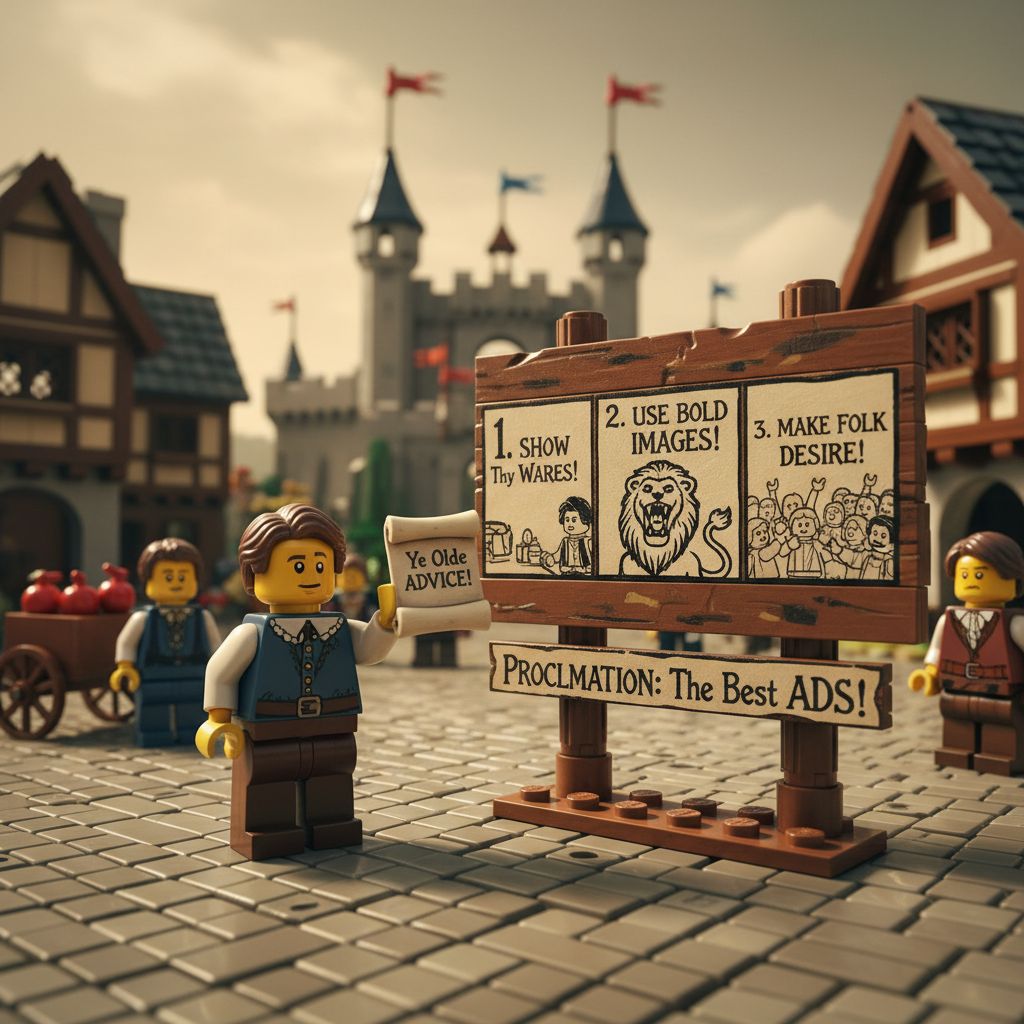
Ever spent hours trying to create the perfect product ad? You snap a photo, struggle with backgrounds, fight with lighting, and still end up with something that looks... amateur? We've been there. That's exactly why we built the Ad Generator.
The Magic Behind Your Marketing
Here's the thing about great product photography—it's not just about the product. It's about the story, the context, the feeling you create around it. Our Ad Generator, powered by Nano Banana, understands this deeply.
When you upload a product photo, something special happens. The AI doesn't just see "a shoe" or "a watch." It understands what makes that product appealing, what environment would showcase it best, and what style would resonate with your audience. Then it creates not just one ad, but multiple variations—each telling a different story about your product.
What makes this different:
- It thinks like a marketer: The AI understands product positioning and creates contextually relevant scenes
- Multiple perspectives, one click: Get 4 distinct marketing angles instantly
- Actually usable results: These aren't just pretty pictures—they're conversion-focused designs
- Edit like you're talking to a designer: Need changes? Just describe what you want
- Never lose a good version: Every edit is saved, so you can always go back
Your First Professional Ad in 30 Seconds
The Perfect Product Photo (Spoiler: It Doesn't Need to Be Perfect)
Here's a secret—you don't need expensive equipment or a photography degree. Your smartphone is plenty good enough. The AI does the heavy lifting, but giving it a decent starting point helps.
What works best: Think of it like this: you're showing your product to a friend. You'd naturally:
- Put it on a clean surface (your desk, a plain wall, even a bedsheet works)
- Make sure there's enough light to see it clearly (near a window is perfect)
- Center it in the frame so it's the star of the show
- Take a few shots from different angles (the AI loves options)
Quick smartphone tips that make a difference:
- Wipe your camera lens (seriously, this alone improves 90% of photos)
- Tap to focus on your product before shooting
- Take the photo from slightly above rather than straight on
- If your product is reflective, watch out for your own reflection
- Natural light beats flash every single time
The Settings That Actually Matter
Look, there are a bunch of settings you can adjust, but here's what really makes a difference:
Number of variants is your best friend. Always generate 4. Why? Because each one approaches your product differently—one might be minimal and elegant, another vibrant and energetic. It's like having four different designers pitch you ideas, and it takes the same amount of time as generating one.
Advanced settings are there when you need them, but the AI is surprisingly good at figuring things out. That said, if you're selling luxury items, telling it you're targeting a "luxury market" absolutely helps. Same goes for youth products—the AI will adjust the entire vibe.
Watch the Magic Happen
When you hit "Generate," here's what's actually happening behind the scenes:
First, the AI studies your product like an experienced photographer would. It figures out what it is, what angle looks best, what kind of lighting would be flattering. This takes about 10-15 seconds.
Then it creates your variants. Each one is a complete reimagining—different backgrounds, different moods, different marketing angles. The whole process takes about 30 seconds total.
Go grab a coffee. By the time you're back, you'll have professional ads waiting.
Understanding Your Four Variants
When you generate ads, you're not getting four random versions. Each variant has a specific purpose, targeting different marketing needs. Think of them as your personal marketing team:
The "Clean Showcase" Designer
This is your minimalist. They believe your product should speak for itself. You'll get a crisp, clean background—often white or subtle gradients. The lighting is perfect, shadows are soft, and every detail of your product is visible.
This variant crushes it on e-commerce sites. It's what Amazon sellers dream of—professional, trustworthy, clear. Your customers can see exactly what they're buying.
The "Lifestyle" Storyteller
This designer asks, "Where does this product live in the real world?" A coffee mug might end up on a cozy breakfast table with morning light streaming in. Running shoes might appear on a forest trail.
This variant connects emotionally. It helps customers imagine your product in their life. Perfect for Instagram, Pinterest, or any platform where you're selling a feeling, not just a product.
The "Premium Luxury" Architect
Everything this designer touches turns elegant. Expect rich, dark backgrounds, dramatic lighting, maybe some marble or gold accents. Your $20 product suddenly looks like it belongs in a boutique window.
Use this when you want to position your brand upmarket. It's particularly powerful for gifts, special editions, or when you're trying to justify a higher price point.
The "Dynamic Energy" Creative
This is your bold, attention-grabbing designer. Bright colors, dynamic compositions, maybe some motion blur or energetic backgrounds. It practically jumps off the screen.
This variant is your secret weapon for promotions, flash sales, or targeting younger audiences. It creates urgency and excitement—perfect for "limited time offer" campaigns.
Making Your Ads Even Better
Talk to Your AI Designer
Here's where things get really interesting. See an ad that's almost perfect? You can refine it just by describing what you want changed. No Photoshop skills required.
Click the edit button (or just press 'E' when viewing an ad) and talk to it like you would a designer. Be conversational. Be specific about what you want, but don't overthink it.
Real examples that work great:
Instead of technical jargon, try:
- "Make this feel more cozy and warm"
- "Add some plants in the background"
- "Can you make this look more high-tech?"
- "Put this on a wooden surface instead"
- "Make the whole thing brighter and more cheerful"
Common Edits That Transform Your Ads
"Wrong vibe" fixes: Your product ended up in a techy setting but you sell to crafters? Just say "Make this more artisanal and handmade feeling" or "Put this in a craft room setting."
Lighting magic:
- "Add warm sunset lighting" instantly makes products feel premium
- "Bright, clean lighting like Apple photos" gives that minimal tech look
- "Soft window light" creates that Instagram-worthy natural feel
Background swaps that work:
- "Put this on marble" = instant luxury
- "Add a soft gradient background" = modern and clean
- "Place this in a home office" = professional context
- "Beach setting" = vacation vibes
- "Dark moody background" = dramatic and premium
Color psychology at work:
- "Make everything warmer" = friendly and approachable
- "Cool blue tones" = professional and trustworthy
- "Add gold accents" = premium feel without changing the product
- "Pastel colors" = soft, gentle, often feminine appeal
- "High contrast black and white" = bold and decisive
Advanced Settings Guide
Product Categories
Auto-Detect: Let AI determine optimal presentation Fashion & Apparel: Styled for clothing, accessories Electronics: Tech-focused, modern presentations Toys & Games: Playful, colorful environments Home & Living: Cozy, lifestyle contexts Food & Beverage: Appetizing, fresh presentations Beauty & Cosmetics: Elegant, luxurious styling Sports & Fitness: Active, energetic environments
Target Audiences
General Audience: Broad appeal, versatile styling Youth & Teens: Trendy, vibrant, social media ready Adults: Professional, sophisticated, practical Luxury Market: Premium, exclusive, high-end Business/Professional: Corporate, clean, trustworthy Families: Warm, approachable, safe
Color Schemes
Auto (Varied): Different color approaches per variant Vibrant & Colorful: Bold, eye-catching colors Minimal & Clean: Subdued, professional palette Dark & Moody: Dramatic, sophisticated tones Soft Pastels: Gentle, approachable colors Monochrome: Classic black and white
Background Styles
Varied Styles: Different background per variant Studio/Plain: Clean, professional backgrounds Lifestyle Scenes: Real-world usage environments Abstract/Artistic: Creative, non-literal backgrounds Nature/Outdoor: Natural, organic environments Tech/Futuristic: Modern, high-tech aesthetics
Commercial Workflows
E-commerce Product Photography
Workflow:
- Upload clean product photo
- Set category to match your product
- Choose "General Audience" and "Minimal & Clean"
- Generate 4 variants for variety
- Download clean showcase version for main listing
- Use lifestyle version for promotional content
Social Media Marketing
Workflow:
- Upload lifestyle-focused product photo
- Set target audience to match your demographic
- Choose "Vibrant & Colorful" scheme
- Generate lifestyle and dynamic variants
- Use different variants across platforms
Premium Brand Marketing
Workflow:
- Upload high-quality product photo
- Set "Luxury Market" audience
- Choose sophisticated color scheme
- Generate premium luxury variants
- Edit for brand-specific refinements
Best Practices
Photo Preparation
Do:
- Use consistent lighting
- Remove distracting backgrounds
- Ensure product is clean and styled
- Take multiple angles if needed
- Use high resolution images
Don't:
- Include multiple products in frame
- Use heavily shadowed photos
- Upload blurry or pixelated images
- Include people unless product-relevant
- Use overly busy backgrounds
Generation Strategy
Efficient Approach:
- Generate 4 variants initially
- Review all options before editing
- Select best 1-2 for refinement
- Use specific edit prompts
- Save successful prompts for future use
Quality Optimization
For Best Results:
- Start with high-quality source images
- Use descriptive product categories
- Match audience to your market
- Test different color schemes
- Edit incrementally, not drastically
Version History and Management
Understanding Version History
Each ad maintains its edit history automatically:
- Current: Latest version displayed in grid
- Version 1, 2, 3...: Previous edits in chronological order
- Revert: Click any previous version to restore
Version Control Tips
Managing Edits:
- Preview edits before committing
- Keep successful versions saved
- Document what changes worked
- Use version history for A/B testing
- Revert to previous if edit fails
Troubleshooting Common Issues
Poor Source Image Quality
Problem: Ads look unprofessional or distorted Solution:
- Use higher resolution source images
- Improve lighting in original photo
- Remove cluttered backgrounds
- Ensure product is clearly visible
Inconsistent Style
Problem: Generated variants don't match brand Solution:
- Specify target audience more precisely
- Use advanced settings for consistency
- Edit with brand-specific prompts
- Choose appropriate color schemes
Edit Not Working
Problem: Edit prompts don't produce desired changes Solution:
- Use more specific descriptions
- Break complex changes into steps
- Match existing ad style in prompts
- Try alternative phrasing
Advanced Techniques
Brand Consistency
Maintain Brand Identity:
Edit prompt: "Add [brand color] accents"
Edit prompt: "Match [brand] aesthetic style"
Edit prompt: "Professional [industry] presentation"
Seasonal Campaigns
Holiday/Seasonal Styling:
"Christmas holiday theme"
"Summer vacation aesthetic"
"Back-to-school environment"
"Valentine's day romantic style"
A/B Testing
Create Test Variants:
- Generate base ads
- Edit each with different approaches
- Use version history to compare
- Test performance across platforms
- Scale successful variations
Integration with PhotoGenius Workflow
Complete Marketing Pipeline
- Product Photos: Use FLUX 1.1 Pro for initial product photography
- Ad Generation: Create marketing variants with Ad Generator
- 3D Models: Generate 3D versions for interactive content
- Video Content: Create product videos with video models
- Consistent Branding: Use Nano Banana for brand consistency
Credit Management
Efficient Credit Usage:
- Generate 4 variants at once for variety
- Edit existing ads instead of regenerating
- Use version history to avoid redundant generation
- Plan campaigns to batch similar products
Professional Tips
Marketing Campaign Creation
Campaign Structure:
- Hero Ad: Premium luxury variant for main campaign
- Social Content: Dynamic energy for engagement
- E-commerce: Clean showcase for product pages
- Lifestyle: Lifestyle context for authentic appeal
Industry-Specific Applications
Fashion Brands:
- Use lifestyle and premium variants
- Edit for seasonal color palettes
- Focus on target demographic settings
Electronics:
- Emphasize tech backgrounds
- Use clean, modern styling
- Highlight product features clearly
Food & Beverage:
- Choose appetizing color schemes
- Use lifestyle context settings
- Edit for fresh, appealing presentation
Measuring Success
Quality Indicators
Professional Standards:
- Clean, distraction-free composition
- Appropriate lighting and shadows
- Brand-consistent color palette
- Clear product visibility
- Market-appropriate styling
Performance Metrics
Track Effectiveness:
- Click-through rates by variant type
- Conversion rates by audience setting
- Engagement by color scheme
- Platform performance by style
Pro tip: The Ad Generator works best with clean, well-lit product photos. Spend time on source image quality for dramatically better results. Use version history to experiment freely - you can always revert to previous versions.
Continue reading
- 10 min
Common PhotoGenius Mistakes and How to Fix Them
Avoid these common pitfalls when using FLUX 1.1 Pro, Nano Banana, video generation, and 3D creation models.
- 12 min
PhotoGenius Workflow Optimization Guide
Optimize your image and video generation workflow using FLUX 1.1 Pro, Nano Banana, and PhotoGenius's video models.
- 10 min
3D Generation with PhotoGenius
Generate 3D models from text prompts or images using PhotoGenius's AI-powered 3D generation tools.