Tips and tricks, Beginner, 10 min read, PhotoGenius Team
Common PhotoGenius Mistakes and How to Fix Them
Avoid these common pitfalls when using FLUX 1.1 Pro, Nano Banana, video generation, and 3D creation models.
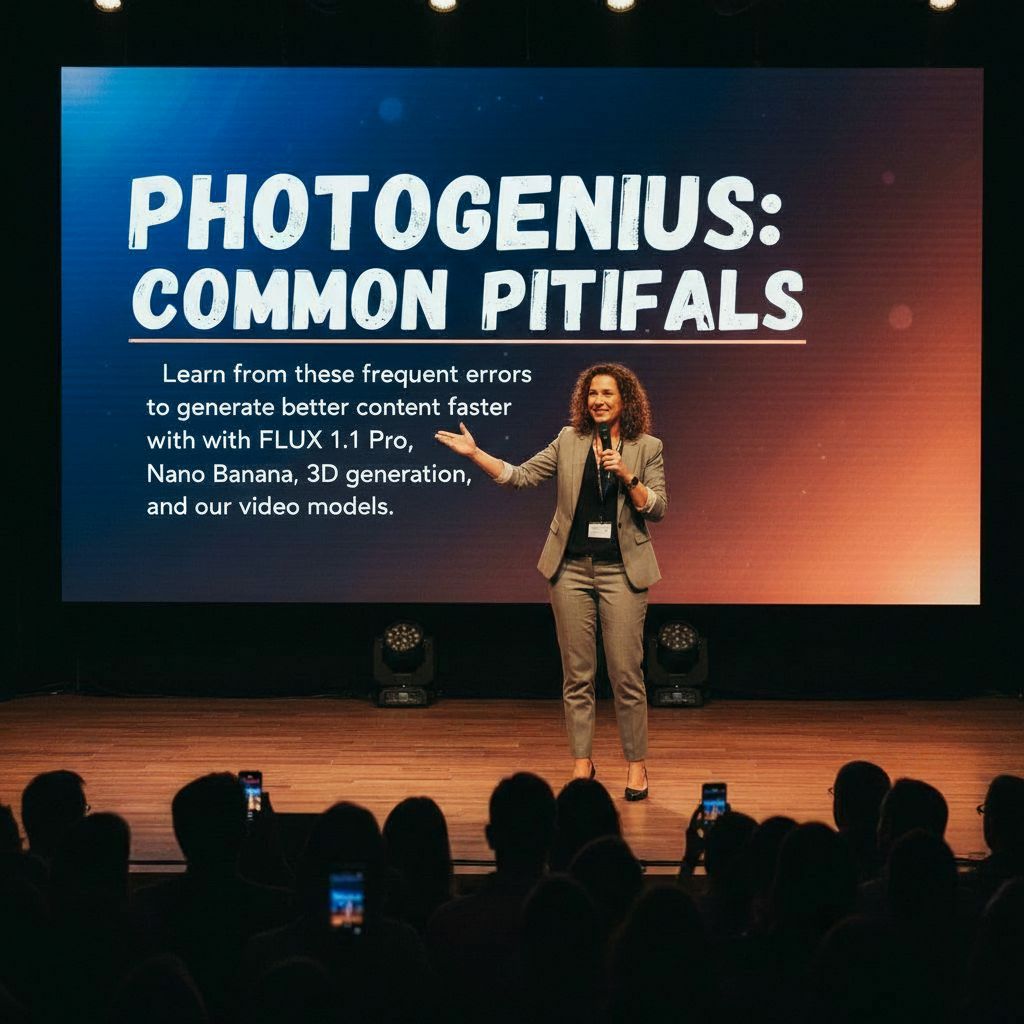
The Mistakes We All Make (And How to Fix Them)
Look, we've all been there. You're excited about creating something amazing with AI, and then... it doesn't quite work. Here's the thing—most of the time, it's not you. It's just that nobody told you these little secrets.
FLUX 1.1 Pro: Where Good Prompts Go Wrong
The "More Details = Better Results" Trap
I get it. You want to describe every single detail to get the perfect image. But here's what nobody tells you: FLUX stops listening after about 75 words. It's like trying to give someone directions to your house and including the color of every building along the way—they'll tune out.
What we all try first:
"A woman with long brown hair wearing a blue business suit
sitting in a modern office with glass windows showing a city
skyline during sunset with warm lighting and she's smiling
confidently while holding a laptop and there's a coffee cup
on the desk and some plants in the background and..."
What actually works:
"Professional photograph, woman CEO in modern office,
confident expression, natural window light,
business attire, sharp focus, 85mm lens"
See the difference? It's not about less detail—it's about the right details in the right order.
Mistake 2: Style Placement
Problem: Placing style keywords at the end of prompts reduces their impact.
Wrong:
"Woman with red hair sitting on bench, oil painting style"
Right:
"Oil painting, woman with red hair sitting on bench"
FLUX prioritizes early prompt elements.
Mistake 3: Ignoring Aspect Ratios
Problem: Trying to fit complex horizontal scenes in square format.
Wrong: Forcing a landscape scene into 1:1 ratio
Right: Use 16:9 for landscapes, 9:16 for portraits, 1:1 for centered subjects
Mistake 4: Quality Setting Confusion
Problem: Always using maximum quality (100) even for drafts.
Inefficient Workflow:
- Testing at quality 100 (slow, expensive)
- Making multiple attempts at high quality
Efficient Workflow:
- Test at quality 80 (fast iterations)
- Refine prompt based on results
- Final generation at quality 95+
Mistake 5: Fighting FLUX Limitations
Problem: Trying to generate perfect text or complex hands repeatedly.
Known FLUX Limitations:
- Text in images often garbled
- Hands frequently need multiple attempts
- Very small details may be inconsistent
Solution:
- Avoid text in images when possible
- Hide hands or use simple poses
- Use Nano Banana to fix specific issues
Nano Banana Editing Mistakes
Mistake 1: Describing What to Remove
Problem: Nano Banana works by replacement, not removal.
Wrong:
"Remove the person from the image"
Right:
"Empty park bench" (describe what should be there instead)
Mistake 2: Oversized Masks
Problem: Making masks too large causes inconsistent results.
Wrong: Masking entire half of image to change small detail
Right: Mask only the specific area that needs changing
Mistake 3: Style Mismatches
Problem: Editing photographic images with artistic prompts.
Wrong: Original: Photograph Edit prompt: "Cartoon style dog"
Right: Original: Photograph Edit prompt: "Photographic style brown dog"
Match the original image style for seamless edits.
Mistake 4: Multiple Simultaneous Changes
Problem: Trying to change multiple things in one edit.
Wrong:
"Change shirt to red and add sunglasses and fix background"
Right: Make one edit at a time:
- Edit 1: "Red shirt"
- Edit 2: "Sunglasses on face"
- Edit 3: "Beach background"
Video Generation Mistakes
Mistake 1: Wrong Model Selection
Problem: Using slow models for quick previews or fast models for final quality.
Model Selection Guide:
- Quick test: Google Veo 3 (fastest)
- Realistic content: Google Veo 2
- Artistic style: Kling 1.6 Pro
- Maximum quality: WAN 2.1
- Cinematic look: Minimax O1
Mistake 2: Overly Complex Motion
Problem: Requesting complex physics or multiple simultaneous actions.
Wrong:
"Person juggling while riding bicycle through traffic"
Right:
"Person riding bicycle on empty path"
Keep motion simple for better results.
Mistake 3: Ignoring Duration Limits
Problem: All video models limited to 5-8 seconds.
Wrong: Trying to tell a complete story in one generation
Right: Focus on single moments or simple actions
Workflow Mistakes
Mistake 1: Not Using Batch Generation
Problem: Generating one image at a time instead of variations.
Inefficient: Generate → Review → Generate → Review
Efficient: Generate 4 variations → Select best → Refine with Nano Banana
Mistake 2: Skipping Version History
Problem: Not utilizing PhotoGenius's version history feature.
Result:
- Lost good versions after edits
- Can't compare iterations
- No way to revert changes
Solution: Version history saves all edits automatically - use it to experiment freely.
Mistake 3: Not Saving Successful Prompts
Problem: Recreating prompts from memory each time.
Solution: Build a personal prompt library:
Portrait: "Photograph, [subject], natural light, 85mm lens"
Product: "Product photography, [item], white background, studio lighting"
Landscape: "Landscape photo, [location], golden hour, wide angle"
Credit Usage Mistakes
Mistake 1: Testing at High Quality
Waste: Using quality 95+ for initial tests
Smart:
- Quality 70-80 for testing
- Quality 85-90 for client previews
- Quality 95+ for final delivery
Mistake 2: Excessive Regeneration
Problem: Generating 20+ times hoping for perfect result
Solution: After 4-5 attempts:
- Revise your prompt strategy
- Try different approach
- Use Nano Banana for fixes
- Consider if expectation is realistic
Common Prompt Mistakes
Mistake 1: Contradictory Instructions
Wrong:
"Photorealistic cartoon"
"Minimalist with lots of detail"
"Dark bright colors"
Right: Choose one clear direction:
"Photorealistic portrait"
"Minimalist design"
"Dark moody colors"
Mistake 2: Ambiguous Descriptions
Wrong:
"Nice looking person"
"Cool background"
"Good lighting"
Right:
"Professional woman, age 30"
"Modern office background"
"Soft natural window light"
Mistake 3: Missing Technical Details
Wrong:
"Picture of a dog"
Right:
"Photograph of golden retriever,
sitting pose, park background,
natural lighting, sharp focus"
Quick Fixes for Common Issues
Blurry Images
Add: "sharp focus, high resolution, detailed"
Wrong Style
Move style keyword to beginning of prompt
Extra Objects
Add: "single", "only one", "alone"
Bad Composition
Specify: "centered", "rule of thirds", "close-up"
Inconsistent Results
Reduce prompt complexity, be more specific
Best Practices Checklist
Before generating with FLUX:
- Prompt under 75 words
- Style keyword at beginning
- Specific quantities ("one", "single")
- Appropriate aspect ratio selected
- Quality setting matches purpose
Before editing with Nano Banana:
- Mask only necessary area
- Describe what to add, not remove
- Match original image style
- Single change per edit
Before video generation:
- Appropriate model selected
- Simple motion described
- Duration expectations realistic
- Starting image uploaded (if supported)
Troubleshooting Decision Tree
Image looks wrong?
- Is prompt under 75 words? → Shorten it
- Is style clearly specified? → Add at beginning
- Are there contradictions? → Remove conflicts
- Still issues? → Try Nano Banana editing
Edit not working?
- Is mask appropriate size? → Reduce if too large
- Does prompt match style? → Adjust to match
- Multiple changes? → Split into separate edits
Video quality poor?
- Right model for purpose? → Check model guide
- Motion too complex? → Simplify action
- Prompt too vague? → Add specific details
3D Generation Mistakes
Mistake 1: Complex Multi-Object Scenes
Problem: 3D generation works best with single objects, not complete scenes.
Wrong Approach:
"Living room with sofa, coffee table, TV, and decorations"
Correct Approach:
"Modern sofa, gray fabric, three-seat, isolated, clear background"
Generate furniture pieces separately, then combine if needed.
Mistake 2: Missing Background Instructions
Problem: Not specifying background leads to cluttered 3D models.
Wrong:
"Red sports car, vintage style"
Right:
"Red sports car, vintage style, clear background, centered view"
Always include background and positioning instructions.
Mistake 3: Unclear Object Boundaries
Problem: Prompts that don't clearly define where the object begins and ends.
Problematic:
"Tree in landscape"
"Building in cityscape"
"Character in environment"
Better:
"Single oak tree, full height, isolated"
"Office building, complete structure, simple background"
"Robot character, T-pose, clear backdrop"
Mistake 4: Using Transparent Materials
Problem: Glass, water, and transparent materials often generate poorly in 3D.
Avoid:
"Glass vase"
"Crystal sculpture"
"Water bottle (transparent)"
Use Instead:
"Ceramic vase"
"Polished metal sculpture"
"Opaque plastic bottle"
Mistake 5: Wrong Image Input for Image-to-3D
Problem: Using cluttered or low-quality images for 3D conversion.
Poor Image Choices:
- Multiple objects in frame
- Busy backgrounds
- Blurry or low resolution
- Extreme angles or perspectives
Good Image Choices:
- Single object centered
- Clean, simple background
- Good lighting and contrast
- Clear edges and details
Mistake 6: Expecting Instant Results
Problem: 3D generation takes 3-6 minutes, not seconds like 2D.
Wrong Expectation: Immediate results like FLUX 1.1 Pro
Reality:
- 2D reference: 10-20 seconds
- 3D processing: 2-5 minutes
- Total time: 3-6 minutes per model
Solution: Plan workflow accordingly, use time for other tasks.
Mistake 7: Not Specifying Viewing Angle
Problem: Letting the AI choose random perspectives.
Unclear:
"Wooden chair"
Specific:
"Wooden chair, three-quarter front view, upright position"
Common Viewing Angles:
- "front view"
- "three-quarter view"
- "side view"
- "isometric perspective"
Text-to-3D vs Image-to-3D
When to Use Text-to-3D
Best for:
- Original concept creation
- Simple geometric objects
- Stylized items
- When you have clear mental image
Example prompts:
"Modern lamp, cylindrical shape, metallic finish"
"Cartoon dragon, friendly appearance, sitting pose"
When to Use Image-to-3D
Best for:
- Converting existing 2D art
- Complex organic shapes
- When you have reference photo
- Photorealistic objects
Preparation tips:
- Crop image to focus on object
- Enhance contrast for clear edges
- Remove background clutter
- Ensure minimum 1024px resolution
3D Quality Issues and Fixes
Issue: Model Missing Parts
Cause: Incomplete prompt or poor input image Fix: Add "complete object, all parts visible" to prompt
Issue: Wrong Scale/Proportions
Cause: No size context in prompt Fix: Include scale hints: "tall tower", "compact device", "life-size statue"
Issue: Poor Surface Quality
Cause: Vague material description Fix: Be specific: "smooth ceramic", "rough wood grain", "polished metal"
Issue: Model Won't Load in 3D Viewer
Cause: Generation failed or file corruption Fix:
- Check generation completion
- Try downloading GLB file directly
- Regenerate if necessary
Troubleshooting Decision Tree (Updated)
Image looks wrong?
- Is prompt under 75 words? → Shorten it
- Is style clearly specified? → Add at beginning
- Are there contradictions? → Remove conflicts
- Still issues? → Try Nano Banana editing
Edit not working?
- Is mask appropriate size? → Reduce if too large
- Does prompt match style? → Adjust to match
- Multiple changes? → Split into separate edits
Video quality poor?
- Right model for purpose? → Check model guide
- Motion too complex? → Simplify action
- Prompt too vague? → Add specific details
3D model issues?
- Single object in prompt? → Remove extra elements
- Background specified? → Add "clear background"
- Viewing angle clear? → Specify perspective
- Processing complete? → Wait full 3-6 minutes
Platform-Specific Tips
3D Generation Studio
- Allow 5-10 minutes total time
- Use guidance strength 7.5 as default
- Enable color generation for textured models
- Make public for sharing capabilities
Image to 3D Converter
- Upload high-quality images (1024px+)
- Ensure single object focus
- Crop tightly around subject
- Use PNG for transparent backgrounds
Public Gallery
- Browse successful 3D models for inspiration
- Note prompt patterns that work well
- Share your own successful generations
- Use share links for collaboration
Remember: FLUX 1.1 Pro generates 2D images, Nano Banana edits, and our 3D tools convert concepts into interactive models. Use each tool for its strength rather than fighting against limitations.